How to Install Stepcraft on Android (Google Play Closed Testing Guide)
If you are trying to install Stepcraft on Android — or any game that uses Google Play closed testing — you have probably run into confusing steps, missing apps, and error messages that do not explain what went wrong. You are not alone. Google’s closed-beta flow is the same for many games: join a Google Group, opt in through a special link, then install from the Play Store. The catch is that all three steps must use the same Google account, and skipping or reordering them is the most common reason people get stuck.
This guide walks you through the full process for Stepcraft and explains how to fix the issues that come up most often. For a quick checklist, see our Getting Started page — this post is the detailed version.
Before you start
Make sure you have:
- An Android phone with the Google Play Store installed
- One Google account you will use for every step below (a personal Gmail works best; work or school accounts sometimes block Google Groups)
- Your Stepcraft access key — from the email you received after supporting on Patreon, or by going to stepcraft.app/login and viewing it in your account
Your Patreon email does not need to match your Google or Play Store account. Patreon is only used to deliver your access key. The only two things that must match are your Google Group email and your Google Play Store account — and those can be any Google account you like.
Order matters. Skipping a step — especially joining the Google Group or clicking “Become a tester” — is the number-one cause of “app not available” errors in the Play Store.
How Google Play closed testing works
Closed testing lets developers distribute apps through the Play Store to a limited group of testers. Unlike a public app, you cannot simply search for it and install. Google requires two separate enrollments:
- Google Group membership — proves you are on the approved tester list
- Tester opt-in — tells Google Play you want to install the test build
Only after both are complete will the app appear in the Play Store for your account. Stepcraft uses this exact flow, and so do many other games in closed beta.
Step 1: Join the Google Group
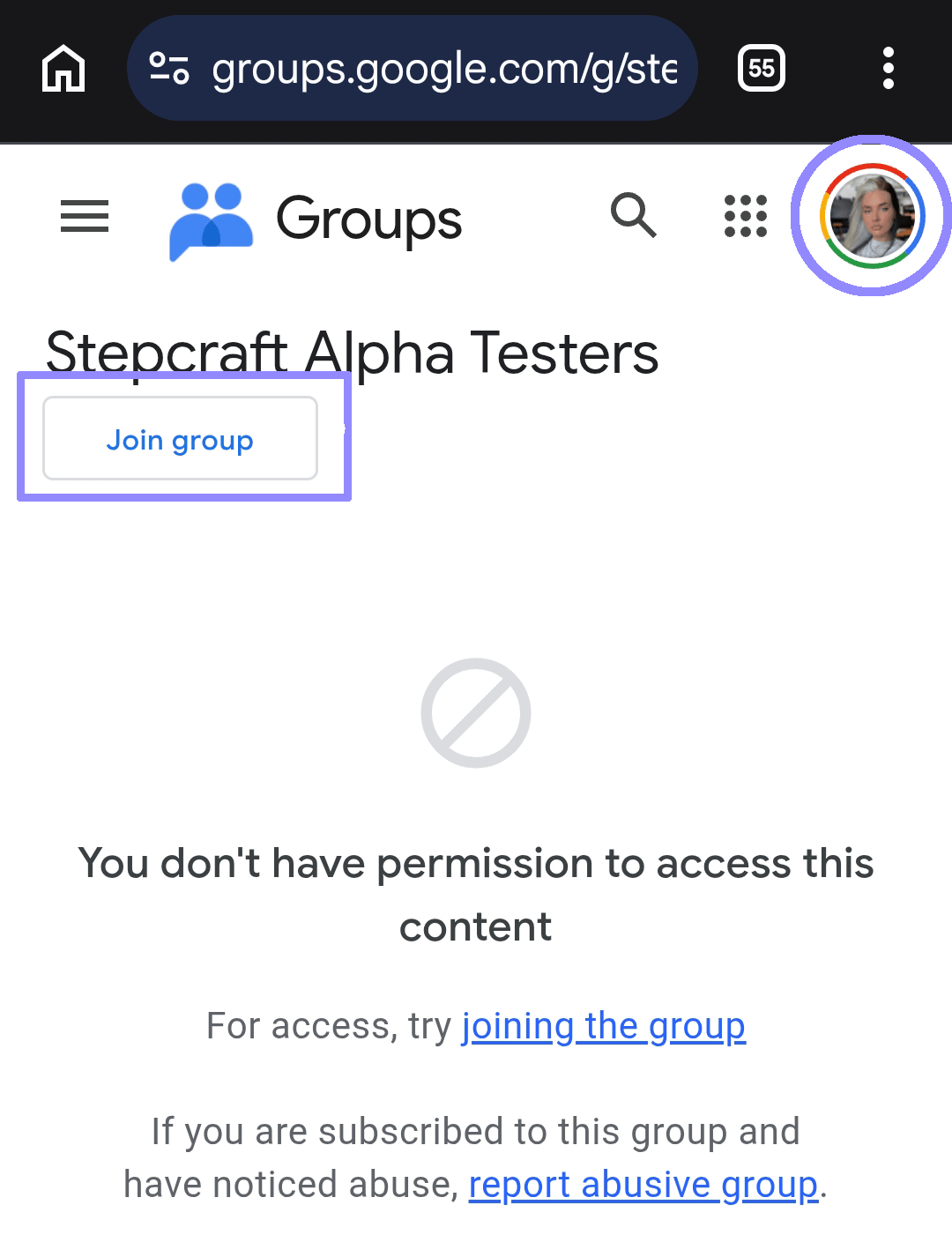
Open the Stepcraft Alpha Testers Google Group and join with the same email address you use on the Google Play Store:
- Sign in to Google with your Play Store account (check the account icon in the top-right corner).
- Click Join group.
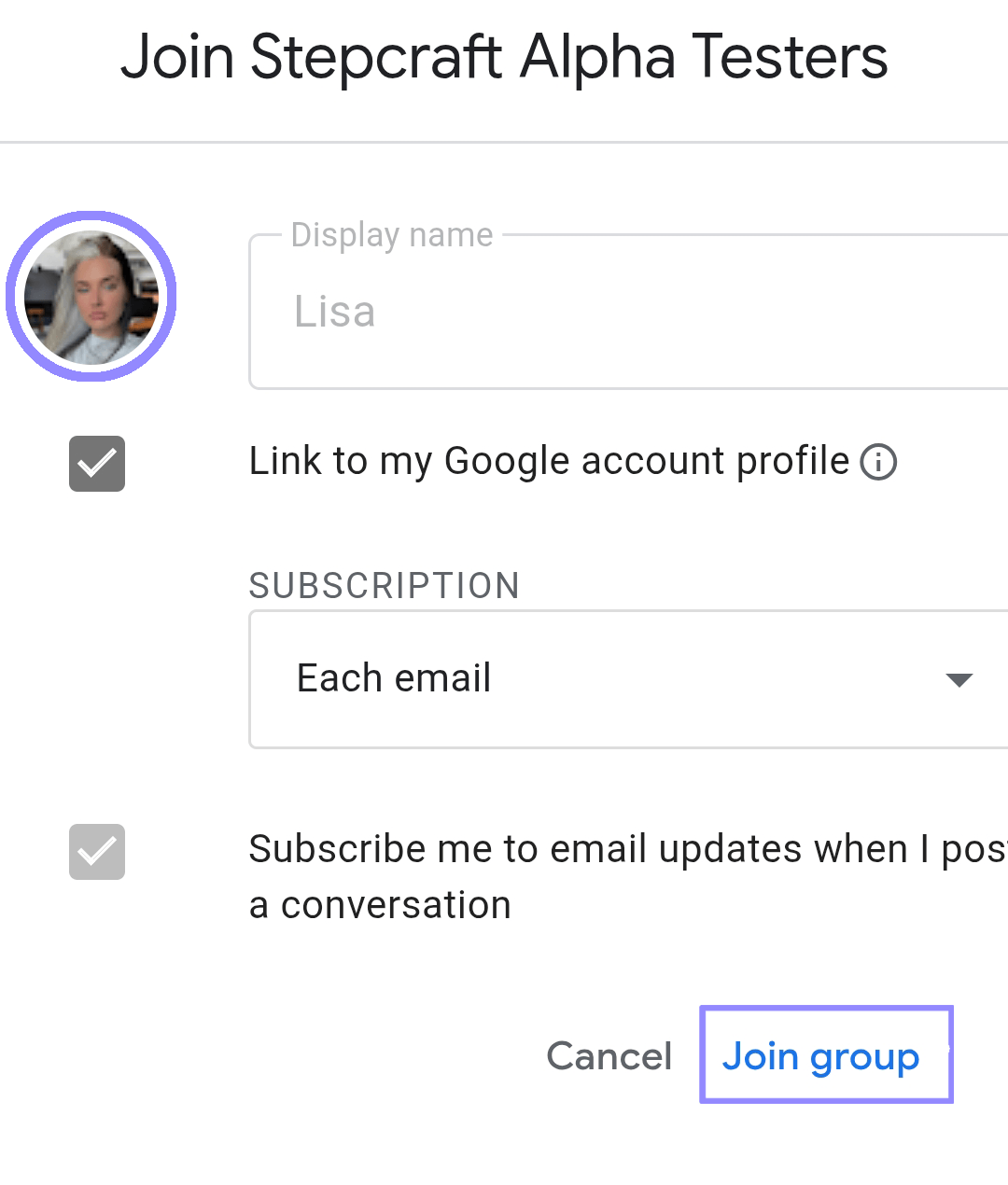
- Confirm in the dialog that appears — you can leave the default settings as they are.
- Wait for the confirmation that you are a member.
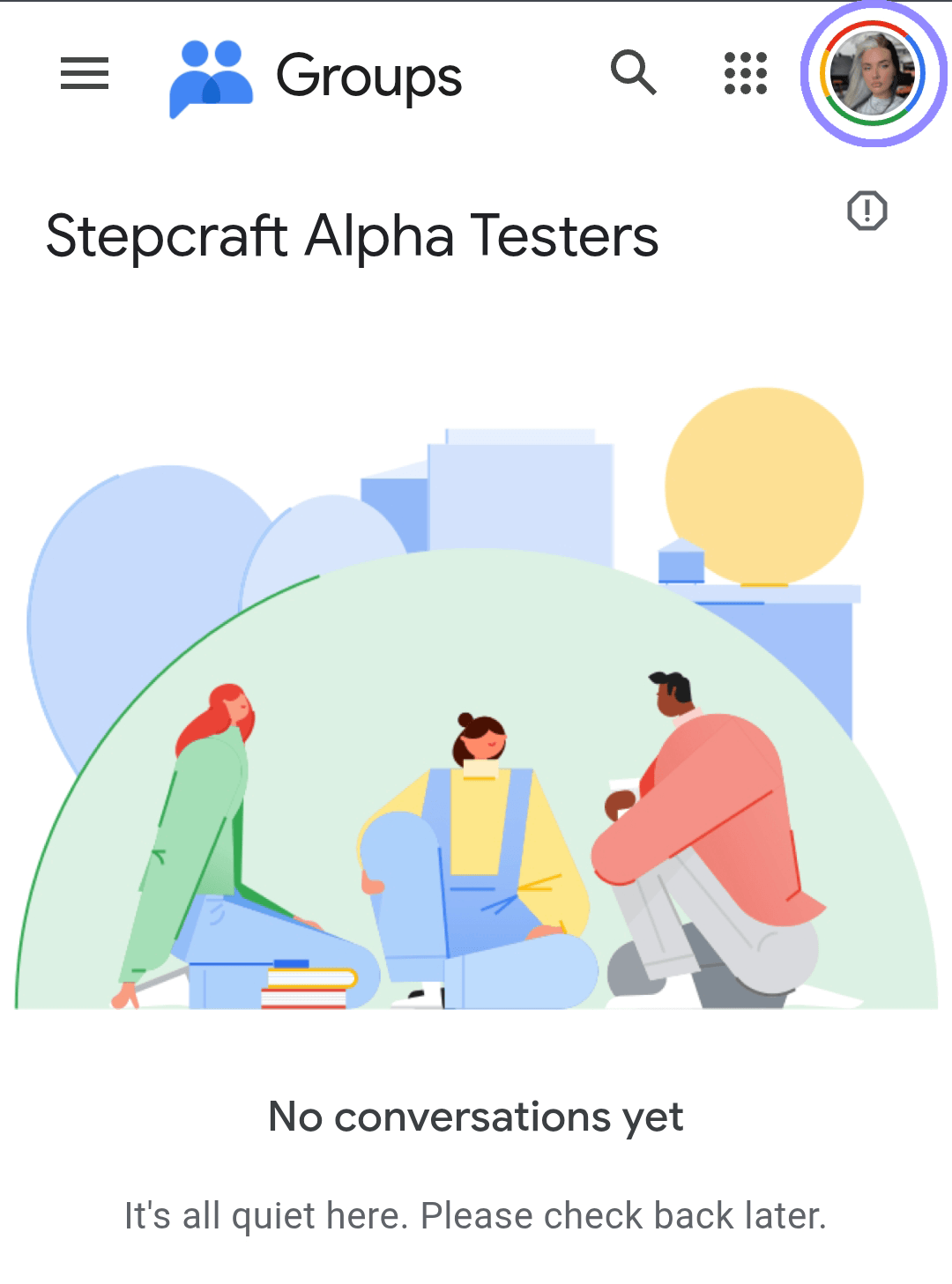
“No conversations yet” is completely normal. We only use the Google Group to manage who is allowed to test — we never post in it. An empty group means you joined successfully; you do not need to wait for any messages to appear.
Common mistake: Joining the group with a different email than your Play Store account. If your phone uses you@gmail.com but you joined the group with you@work.com, the Play Store will not show the app. Pick one Google account and use it for both the group and the Play Store.
Step 2: Opt in to closed testing
Joining the Google Group alone is not enough. You must also opt in as a tester through Google’s closed testing opt-in page:
- Open the opt-in link in your phone’s browser (or on a computer — but make sure you are signed into the same Google account).
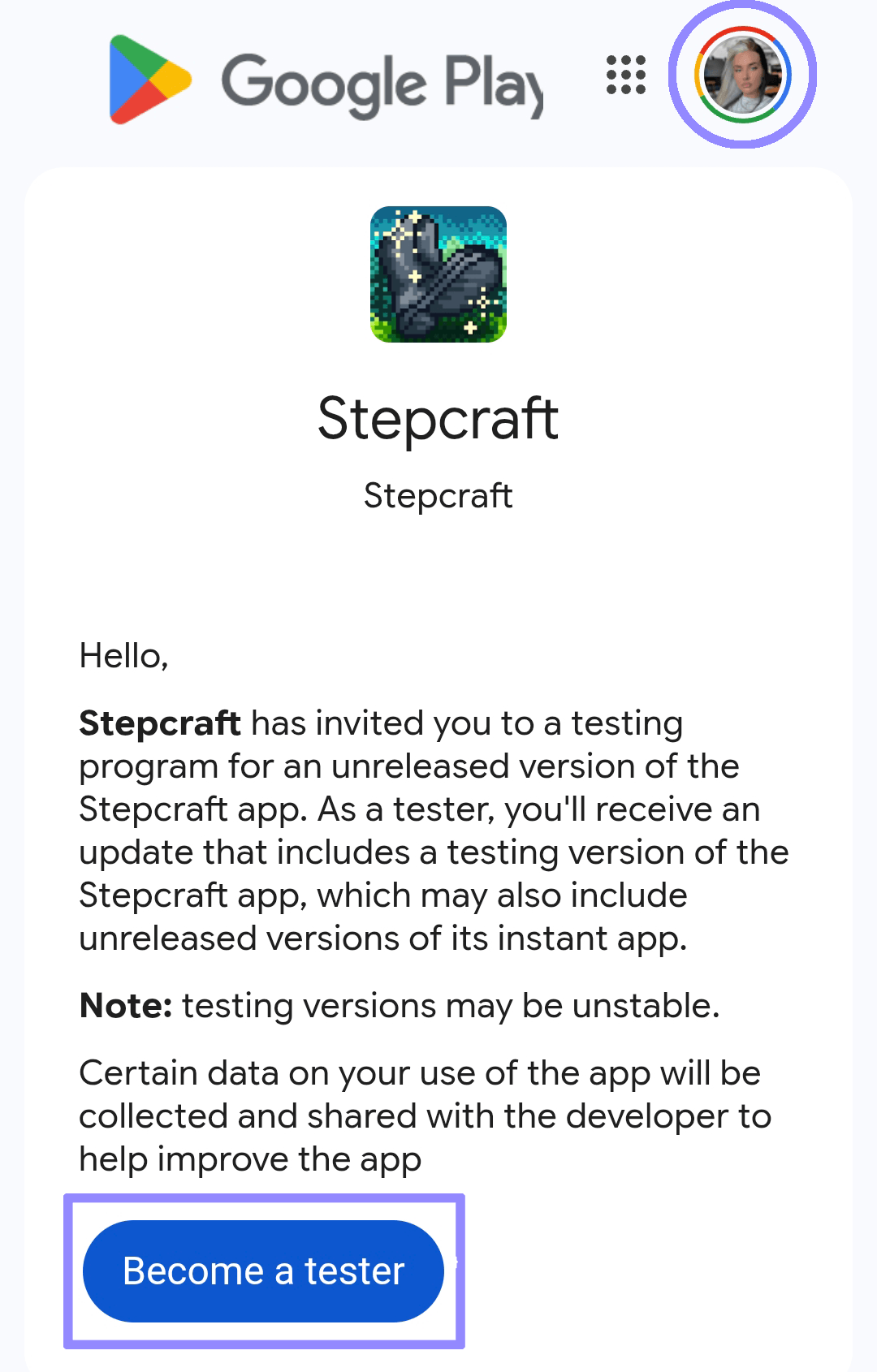
- Click Become a tester.
- On the success screen, tap Download it on Google Play (or open the Play Store link).
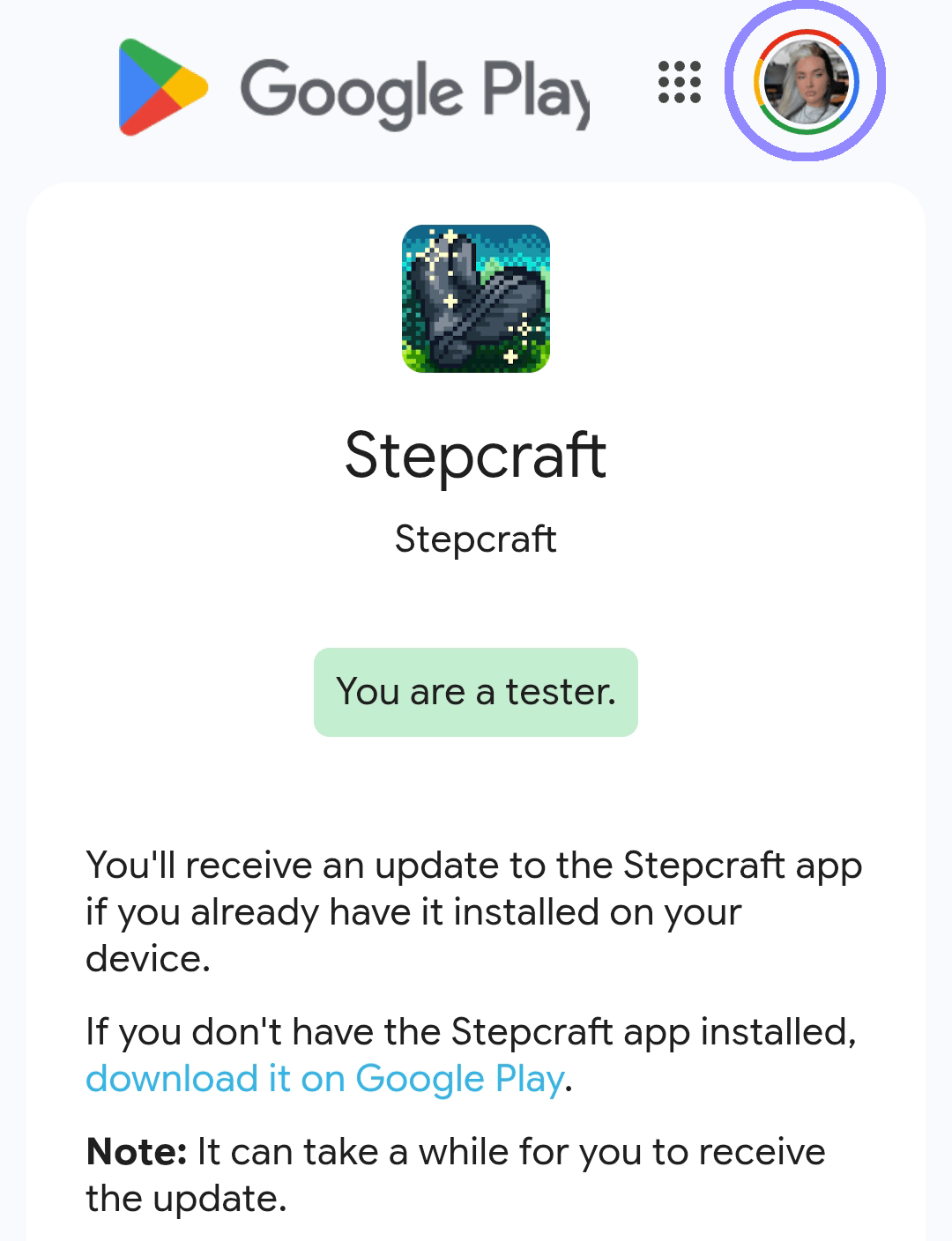
Common mistake: Opening the opt-in link while signed into the wrong Google account. If you have multiple accounts in your browser, use an incognito/private window, sign in with the correct account, then open the opt-in link again. See the troubleshooting section below for a walkthrough.
Common mistake: Assuming that joining the Google Group (Step 1) automatically enrolls you as a tester. It does not. You must click Become a tester on the opt-in page.
Step 3: Install from the Google Play Store
After opting in, open the Stepcraft Play Store listing and install the app.
You should see an Install button. If you see “App isn’t available” or a similar error, go to the troubleshooting section — you likely need to complete Steps 1 and 2, or verify you are signed into the correct account.
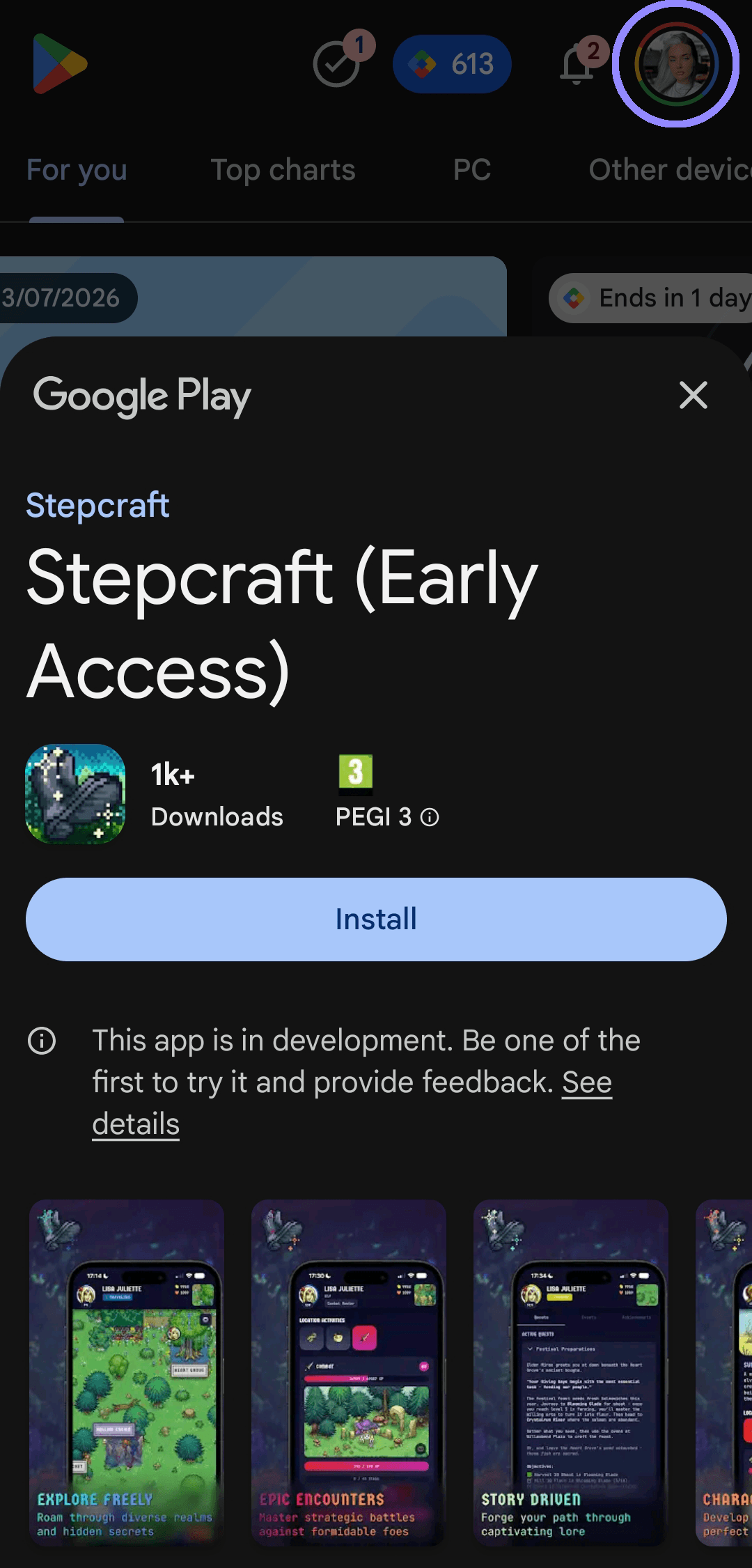
On our Getting Started page, the Android download button asks whether you have completed Steps 1 and 2. If you have not, go back and finish those first before trying to install.
After install: set up Stepcraft
Once Stepcraft is installed:
- Grant step counter permissions when prompted (required for the game to track your steps).
- Create an account and sign in.
- Enter your unique access key — this is personal to you and can only be used once.
- Start your adventure!
If the step counter is not working after setup, check that permissions are enabled in your device’s Settings → Privacy & Security → Health (or equivalent on your Android version).
Troubleshooting common closed testing issues
These problems affect Stepcraft and many other games that use the same Google Group + closed testing setup. Tap any question below to see the fix.
The app will only appear if you have completed both Step 1 (Google Group) and Step 2 (tester opt-in) with the same email as your Play Store account. Searching the Play Store before opting in will not work — you need the opt-in link first.
Fix: Complete Steps 1 and 2, then open the Play Store listing directly. If it still does not appear, check which Google account your Play Store is using (see the account question below).
This usually means either you have not joined the Google Group yet, or you are signed into a different Google account than the one you used to join the group.
Fix: Join the Google Group first (Step 1), then open the opt-in link again. If you have multiple Google accounts, use a private/incognito browser window to sign in with the correct account before visiting the opt-in URL.
Joining the group and opting in as a tester are two separate steps. Google does not automatically enroll you as a tester when you join the group.
Fix: Open the opt-in link and click Become a tester. You should see a confirmation page with a link to download from the Play Store.
Your phone’s Play Store may be signed into a different Google account than the one you used in your browser.
Fix: On your phone, open the Play Store, tap your profile icon, and check which account is active. Switch to the account you used for the Google Group and opt-in, then try the Play Store listing again.
Google sometimes takes a few minutes to propagate tester access after you opt in.
Fix: Wait 15–30 minutes, then reopen the opt-in link to confirm you are enrolled. If it still does not work, clear the Play Store app cache (Settings → Apps → Google Play Store → Storage → Clear cache) and try again. Do not clear data unless you are comfortable re-signing in.
Even when you have joined the Google Group and opted in with the same email address, Google Play sometimes has a delay or caching issue that prevents the app from appearing immediately. This is a recent Google Play issue affecting many closed testing apps.
Fix: Try logging out of your Google account on your device and signing back in. For most people, this resolves the issue. Alternatively, wait 30–60 minutes for Google Play's servers to sync, then check the Play Store listing again. If neither works, try clearing the Play Store cache as described in the previous question.
Tester access is tied to one specific email. Each account needs its own group membership and opt-in.
Fix: Decide which account you want to use, then complete Steps 1 and 2 with that account only. Make sure that same account is active in the Play Store before installing.
If you were previously enrolled and something changed (account switch, cache issue, or a new test build), you may need to re-opt in.
Fix: Reopen the opt-in link, confirm you are still a tester, clear the Play Store cache, and try installing again from the listing URL.
Does this apply to other games too?
Yes. Many Android games in closed beta use the exact same process:
- Join a Google Group (the developer gives you the link)
- Opt in at a
play.google.com/apps/testing/...URL - Install from the Play Store listing
The only things that change are the group name and the opt-in URL. If you are setting up Stepcraft, use the links in this guide. If you are helping someone with a different game, ask the developer for their specific Google Group and opt-in links — the troubleshooting steps above will still apply.
Still stuck?
- Review the quick checklist on our Getting Started page
- Ask for help in our Discord community in #game-help, or open a support ticket in #support
When asking for help, include:
- Your device model and Android version
- Which step failed (group join, opt-in, or Play Store install)
Do not share your email address in Discord. The more detail you provide, the faster we can help you get into the game.